01 / TS2068
The cartridge
The current build starts with a blank document and includes the corrected RTF exporter. Load it in Fuse configured as a TS2068, with your own system ROMs.
Download writer.dck →TIMEX SINCLAIR 2068 · NATIVE CARTRIDGE
Proportional fonts, color, pictures and editable RTF. TSWriter brings a visual word processor to the TS2068—and your documents to the desktop.
* what you see is what you get
Development release · 2 October 2026
START HERE
01 / TS2068
The current build starts with a blank document and includes the corrected RTF exporter. Load it in Fuse configured as a TS2068, with your own system ROMs.
Download writer.dck →02 / DESKTOP
Desktop Fonts 1.2 · about 9.4 MiB. Install the TTF files and restart LibreOffice. Family names match current TSWriter exports automatically.
Download font package →Windows · macOS · Linux. Includes installation instructions, comparison samples and original notices. Outline matches are approximate; wrapping can differ.
03 / BUILD
Z80 assembly, cartridge generation scripts, font sources and regression tests. Build using Python and Pasmo.
Browse the project →TAPE ↔ DESKTOP
These tools run in your browser. The files you select stay on your computer.
Choose File → Export RTF in TSWriter, finish the transfer, then use Fuse’s Tape → Write to save the export TAP. This tool verifies the recording and extracts the editable RTF.
TAP → RTFUse a fresh virtual tape for each export. Native document saves use the repository’s Python converter instead.
Choose a desktop RTF, review compatibility changes, and download an import TAP. Open it in Fuse, then use TSWriter’s File → Import RTF.
RTF → TAPA limited RTF subset, including TSWriter’s own indexed PNG pictures. Complex tables, footnotes and other picture encodings need simplification.
PREPARE YOUR PICTURES
Timex Extended Color Mode (ECM) displays 256 × 192 pixels with 8×1-pixel color attribute resolution: each horizontal strip of eight pixels has its own ink and paper colors. Standard SCR screens use 8×8-pixel attribute blocks, so ECM allows finer color detail while keeping two colors within each strip.
Convert desktop images into Timex ECM or standard SCR screen files. Choose Timex Extended Color for ECM, or a standard Spectrum/Timex mode for SCR, then prepare the supported .tap input for TSWriter’s Insert → Image from file command.
Open Retro Pixel Converter →A separate TS2068 viewer for Timex Extended Color Mode images, including images made with Retro Pixel Converter. Its download page also includes a TSPico viewer/slideshow option. The ECMView archive includes a number of sample Extended Color Mode images that can be imported into TSWriter.
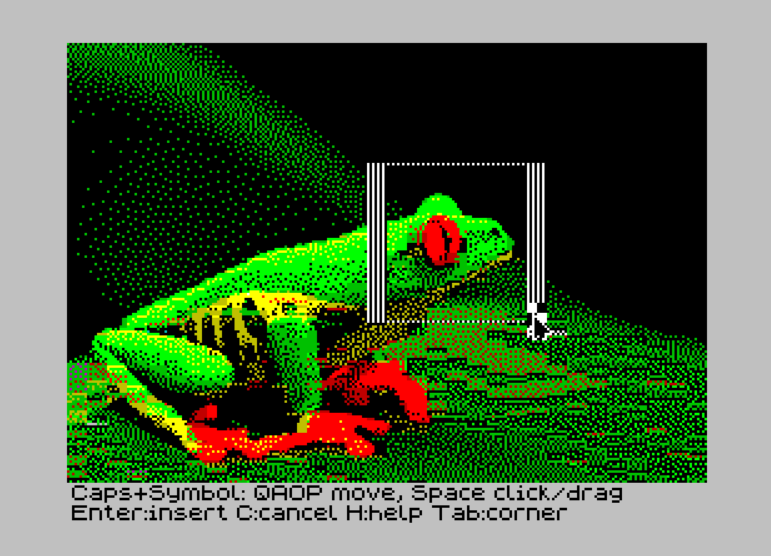
Get ECMView →In TSWriter, load the screen image from a .tap file, crop it, and insert it into your document. See the image insertion and cropping guide.
ON THE SCREEN
Color, fonts and pictures in ECM, and a full-width document in high resolution. Select an image to see it at full size.
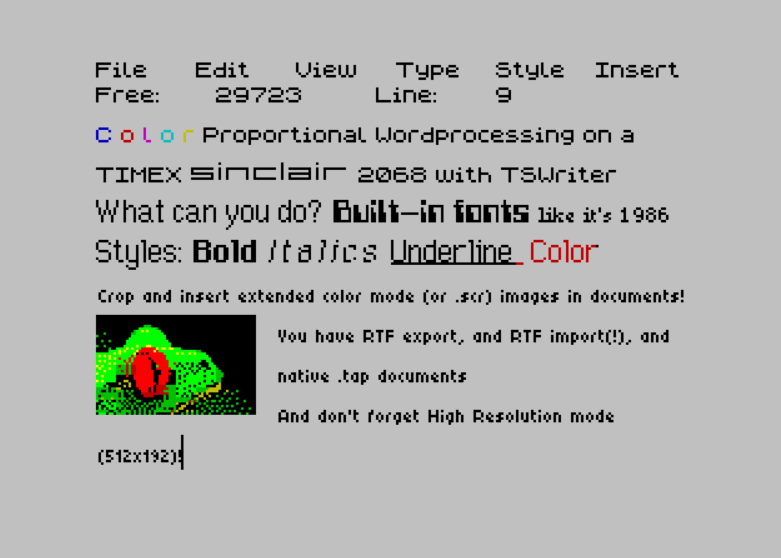
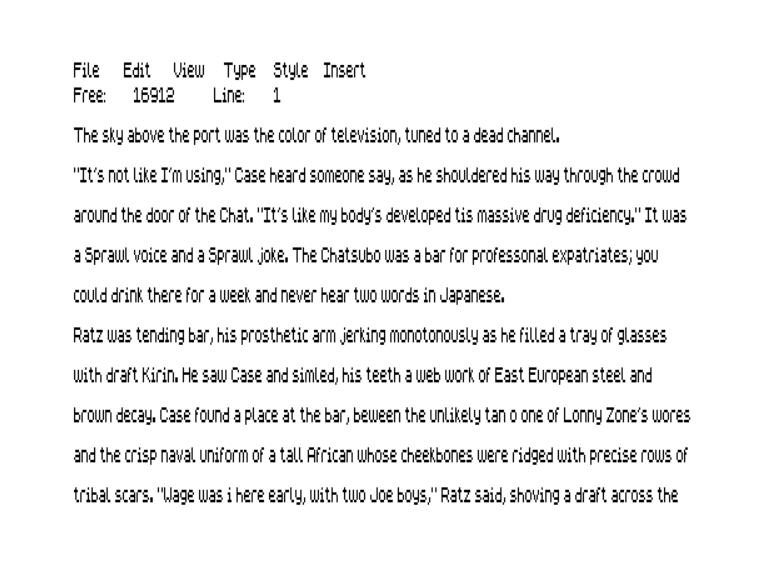
Open IntroDoc.tap in Fuse, then choose File → Load from tape in TSWriter and press Enter. This is a native, editable TSWriter document; loading it replaces the current document, so save your work first.
FROM TS2068 TO DESKTOP
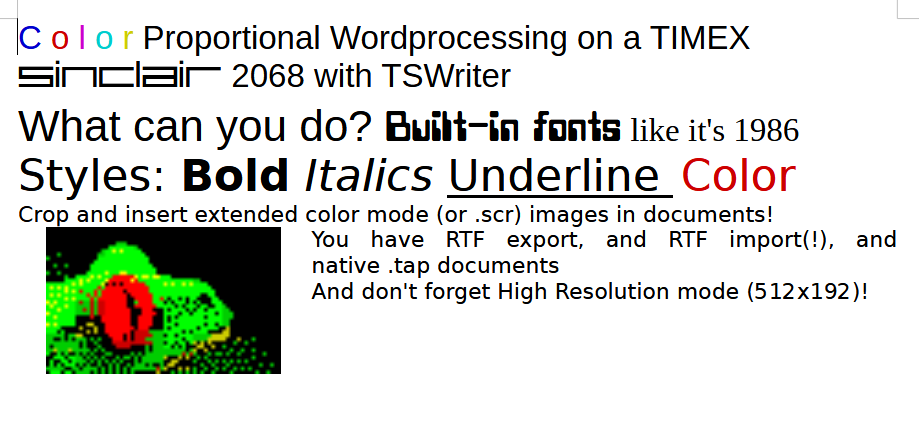
This is a live rich-text preview of the sample exported by TSWriter. The matching fonts load automatically—no installation needed for this preview. Click in the box to select, copy or edit the text; your changes stay on this page and are not saved to the downloadable RTF.
For the downloaded RTF, install the desktop fonts and restart LibreOffice before opening introexport.rtf. This browser preview preserves the sample’s fonts, colors, styles and picture, but line wrapping can differ from LibreOffice and the TS2068.
C o l o r Proportional Wordprocessing on a TIMEX SINCLAIR 2068 with TSWriter
What can you do? Built-in fonts like it's 1986
Styles: Bold Italics Underline Color
Crop and insert extended color mode (or .scr) images in documents!

You have RTF export, and RTF import(!), and native .tap documents
And don't forget High Resolution mode (512x192)!
Select text or click to try editing. Changes are not saved.
Preview font licenses and sources
MADE FOR WRITING
Mix 16 font choices, bold, italic, underline and text colors. Align paragraphs left, center, right or justified.
512 × 192 high resolution and 256 × 192 Timex Extended Color Mode (ECM), with 8×1-pixel color attributes. Choose wide or narrow pages; pan across a wide ECM page.
Word wrapping, persistent selection, cut/copy/paste, Find, page movement and document start/end. Up to five undo states, space permitting.
Import standard SCR or ECM screen images from .tap files, crop in 8-pixel steps, and align pictures with text flowing beside left- or right-aligned images.
Save and load native documents as .tap files. Export editable RTF with embedded pictures; import a supported RTF subset on the TS2068.
Outline fonts for LibreOffice on Windows, macOS or Linux. The separate Timex face intentionally preserves the original pixel-shaped appearance.
Text, formatting, pictures and undo history share a 30 KB pool. Older undo states are discarded as space fills. Free bytes and cursor line update after about half a second of inactivity. Printer output is not implemented.
KEEP YOUR HANDS ON THE KEYS
See the complete menu guide for explanations of every option, document transfer, formatting and image cropping.
Both Shifts means Caps Shift + Symbol Shift. In Fuse, Tab holds both emulated Shift keys. These are the current cartridge commands.
| Area | Keys | Action |
|---|---|---|
| Typing | Letters / digits / Space | Insert text. Caps Shift + letter gives uppercase. |
| Typing | Enter; Caps Shift + 0 | New paragraph; Backspace. |
| Typing | Symbol Shift + 1 / C / V / T / Z | Type ! / ? / slash / > / colon. These are punctuation, not edit commands. |
| Typing | Symbol Shift + M / N / O / P | Type period / comma / semicolon / quotation mark. |
| Typing | Both Shifts, then release (Fuse: tap Tab) | Insert five spaces. |
| Movement | Caps Shift + 5 / 8 / 7 / 6 | Left / right / up / down. Fuse arrow keys provide these chords. |
| Movement | Symbol Shift + Left / Right | Jump to document start / end. On hardware, use both Shifts + 5 / 8. |
| Movement | Symbol Shift + Up / Down | Page up / down (ten layout lines). On hardware, use both Shifts + 7 / 6. |
| Movement | Both Shifts + H / L | Pan wide ECM view left / right. Narrow pages do not pan. |
| Selection | Hold PC Shift first, then an arrow (Fuse) | Start selecting. Further arrows keep extending the selection after Shift is released. |
| Selection | Edit → Mark selection, then arrows | Start persistent selection using the menu; useful on a physical TS2068. |
| Selection | Caps Shift + Space; Edit → Clear selection | Clear the selection without deleting text. Applying a style also clears it. |
| Editing | Symbol Shift + X / Y | Cut / paste. Both Shifts + X / Y also work. |
| Editing | Both Shifts + C / Z | Copy / undo. Up to five undo states, space permitting. |
| Editing | Edit → Find | Search forward, ignoring case, with wraparound. Enter repeats the previous query; Caps Shift + Space cancels. |
| Menus | Symbol Shift + F / E / W / S / I | File / Edit / View / Style / Insert. Both Shifts also work. |
| Menus | Both Shifts + T / V | Type / View. |
| Menus | Arrows; Enter; Caps Shift + Space | Navigate; activate; dismiss. Help/About also provide Enter to continue or return. |
| Pointer | Hold both Shifts + Q / A / O / P | Move up / down / left / right. Fuse Tab holds both emulated Shifts. |
| Pointer | Hold both Shifts + Space | Click. Keep held and move with Q/A/O/P to drag a selection. |
| Cropping | Arrows; hold Shift first, then arrow | Move the crop rectangle by 8 pixels; resize the active corner. |
| Cropping | Both Shifts alone (Fuse: tap Tab) | Switch the active crop corner. |
| Cropping | Enter; C or Caps Shift + Space; H | Insert crop; cancel crop; show/hide crop instructions. |
| Tape | Enter; Space during transfer | Start loading/saving/exporting; abort an active tape transfer. |
Selection stays active after Shift is released for Fuse compatibility. Use Caps Shift + Space to clear it. A physical TS2068 does not need a dedicated Escape key.